
Health Priorities – Child
The Health Priorities - Child concept provides a means of illustrating this policy coverage. Health Priorities – Child offers permanent critical illness insurance for children on an individual basis, premiums are fully paid in 20 years.
- How it works
- Sales approach
- Illustration creation
- Sales material
The Health Priorities - Child concept provides a means of illustrating this policy coverage. Health Priorities – Child offers permanent critical illness insurance for children on an individual basis, premiums are fully paid in 20 years. Also included is a return of premium that is accessible upon cancelation once the child has grown, provided an insurance claim has not been made. If the return is enacted, these funds become available to pursue personal dreams and aspirations.
This protection may also provide a payout at death based upon the following 3 options:
- Death Benefit provides 100% of the Critical Illness insurance face amount
- Refund of Premiums on Death (ROPD) provides a benefit equal to the greater of:
- 25% of the Critical Illness insurance face value or
- the sum of the premiums paid
- No selected option for 0 death benefit
The coverage can also be combined with life insurance for children, thereby offering optimal protection for the family today and for the child in the future.
How the concept works
- Critical illness insurance Health priority – Child, 20 pay, must be selected in the menu of the illustration software DSign-I for the concept to work.
- To generate this concept, the illustration must include only one insured (between age 0 and 25) and the policy owner must be an adult (not a business).
- No additional coverages or riders can be included when running this concept.
Eligibility conditions
- Adult owner (typically the parent, guardian or grandparent of the insured)
- Insured aged between 31 days and 25 years old
- Maximum age 17 to obtain additional children’s illnesses
- One child per Coverage
The customer report included in the Concepts Platform offers a sales approach for the children’s market. This approach shows parents how to achieve their children's dreams and aspirations while protecting their finances from the unexpected. Furthermore, the permanent nature of the coverage provides life-long protection for the insured, thereby establishing a legacy.
For grandparents who are looking to provide a financial gift to their children and/or grandchildren, Health Priorities Child can be an excellent alternative. This strategy will provide the funds at a time of crisis, when they are needed the most. Furthermore, should the child remain healthy, the policy owner is able to enact the return of premiums upon cancelation of the coverage.
Target market
- Parents with children aged 0 to 25:
- Couple or single parent
- Who already have critical illness insurance
- Grandparents with grandchildren aged 0 to 25
- Considering offering a financial gift to their heirs
- Interested in leaving a legacy
Concerns:
- Protect the family’s financial security
- Pay for the child/children’s post-secondary education
- Allow children to realize their dreams and aspirations
- Be available to support a critically ill child
- Provide optimal care and access to top resources (such as Best Doctors)
Procedure to illustrate the product Health priority for Children
- In the illustration insurance software, choose the Life insurance / Critical illness platform
- Choose Critical Illness for Children from the list.
- In the New client 1 window, enter the client details of the adult person (first name, last name, date of birth, smoker/non-smoker rate) who will be defined as the owner of the contract later.
- Press "+" to add a client.
- Enter the client details of the person to be insured (child from 0 to 25 years old).
- Choose the province.
- Check the owner box to identify the owner of the contract.
- In the Summary view, choose Annual frequency to illustrate the concept with an annual premium
- Click on the Products tab at the top of the window, the coverage window should indicate Health Priorities - Child, 20 Pay. If not, open the coverage window and choose the coverage.
- At the Coverage Amount window, enter the amount of critical illness insurance chosen.
- In the Insured(s) window, choose the child to be insured.
- In the Options section which follows, the Return of premiums on Cancellation (ROP) option is already checked because it is included in the coverage.
- Optional: Choose one of the 2 options in the event of death:
- The Return of Premiums on Death (ROPD) provides for the payment of a lump payment upon the insured's death. The amount paid is the greater of:
- 100% of the premiums paid since the coverage was issued
- 25% of the Critical Illness insurance amount
- The Death Benefit which provides a lump sum payment upon the insured's death which equals the total Critical Illness insurance, minus any advanced paid.
- Optional: Additional Children Illnesses. This will enhance the basic protection by adding 3 additional Children's illnesses (Cerebral Palsy, Muscular Dystrophy, Type 1 Diabetes Mellitus). Available if the insured’s age nearest is 17 or younger.
- For the purpose of the concept, do not add additional benefits. Once the concept has been run, additional benefits can be added for the illustration accompanying the application form.
- Click on the Refresh button to update the Summary View and validate that everything is as expected. You are now ready to illustrate the concept.
Procedure to illustrate the Health Priority for Children concept
- Click on the Sales Strategies tab.
- Open the Concepts section.
- Choose the Health Priorities Child concept from the drop-down menu.
- Download the concept by clicking on the Export to Excel button. The illustration data will be transferred to the spreadsheet. You have 60 minutes to start the spreadsheet to access the illustration data. After this time, you will need to download the spreadsheet again.
- When the browser has finished downloading the spreadsheet, start the spreadsheet from the browser or from the Download folder.
- When the spreadsheet opens, activate the content and the macros.

- The following input screen will appear:
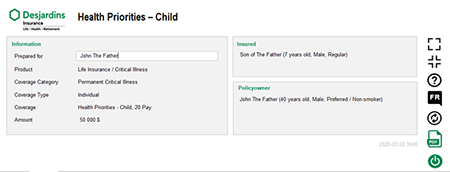
- As the concept incorporates all the product data, there is no new entry to be made. You only need to make sure that the data entered is correct.
- Click the PDF icon on the right of the screen to View the report. The Health Priorities Child concept report will appear in PDF format after a few seconds.
- A copy of the report is automatically saved in the parent directory Downloads > Desjardins. An option to save the report manually is also available.
- Return to the concept entry screen and press the appropriate icon for Exit.
For additional information please connect with your regional sales director.